在XAML中更改
在 https://learn.microsoft.com/zh-cn/windows/apps/design/style/xaml-styles#winui-and-styles 中介绍了在XAML中切换旧版本的方式。
在App.xaml中的XamlControlsResources内添加一个属性:
ControlsResourcesVersion="Version1"
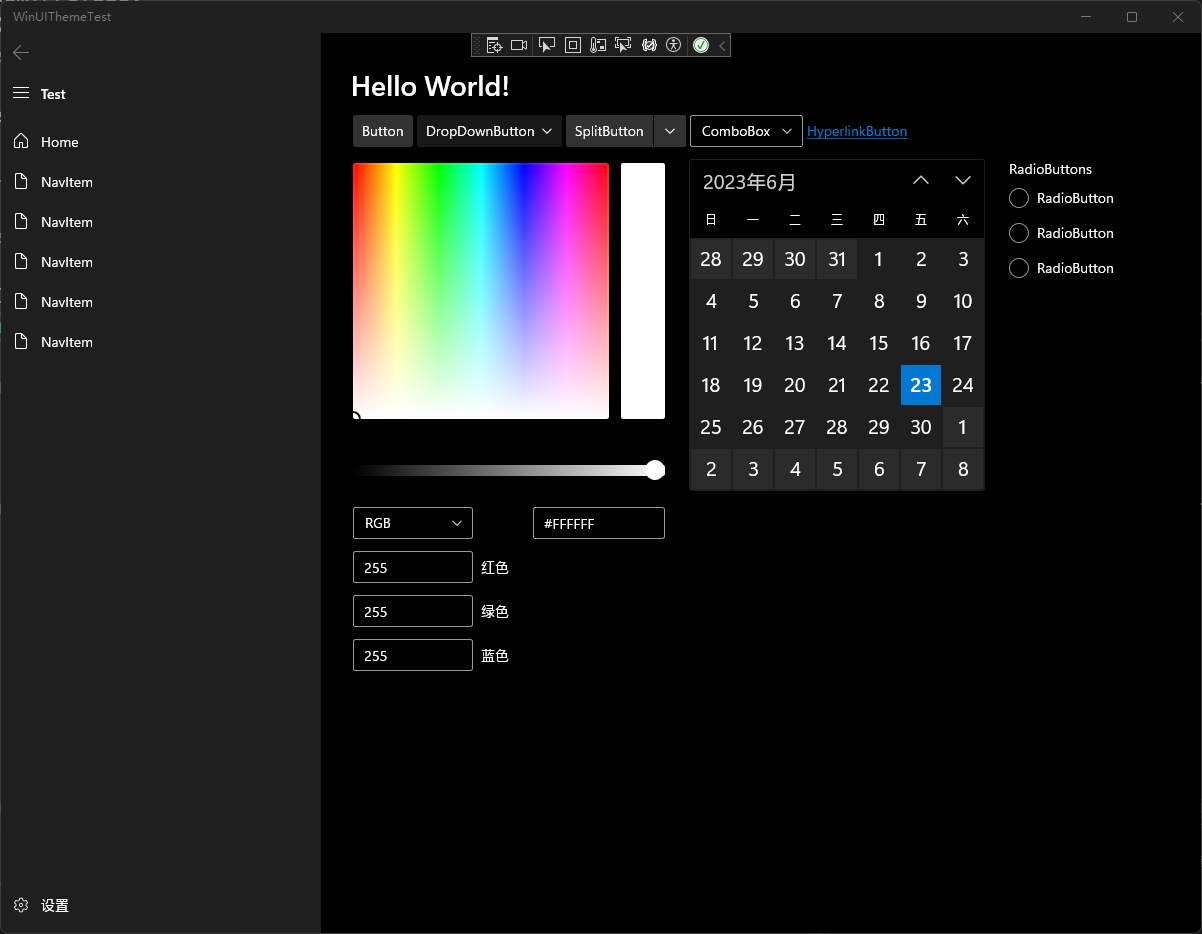
启动应用,就可以看到旧版的控件样式了。
在代码中更改
在应用运行的时候,如果我们用XAML热重载强行更改App.xaml中的样式版本,应用就会因资源冲突闪退
如果在App.xaml.cs中直接给App.Resources添加XamlControlsResources,你会喜提一个报错: 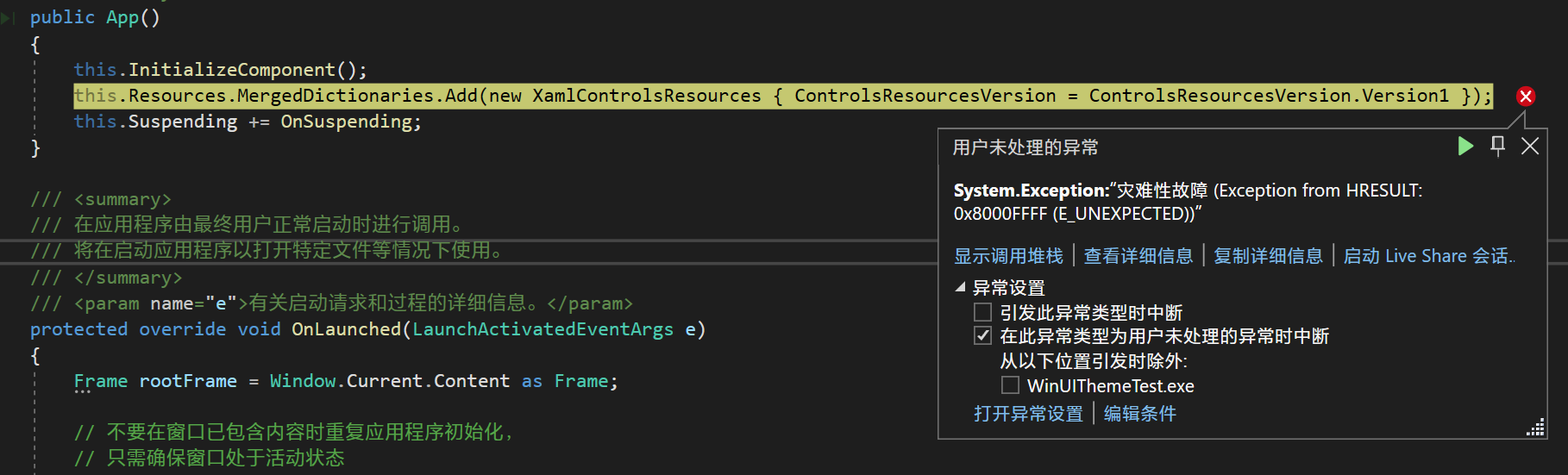
因此,在应用运行或启动时直接更改资源版本是行不通的,我们需要在XAML资源加载之前更改样式的版本
1.创建主题文件
创建一个资源字典Theme.xaml(也可为其他命名)
同时创建后台代码Theme.xaml.cs,此时VS会自动合并两个文件
在Theme.xaml中添加x:Class属性以使用后台代码
xml
x:Class="WinUIThemeTest.Theme"同时在Theme.xaml.cs中作出如下更改
csharp
namespace WinUIThemeTest
{
    internal partial class Theme:ResourceDictionary
    {
        public Theme()
        {
            this.InitializeComponent();
        }
    }
}
2.编写后台代码
这时候,我们就可以在Theme的构造函数中对这个资源字典进行合并操作了:
csharp
public Theme()
{
      this.InitializeComponent();
      this.MergedDictionaries.Add(new XamlControlsResources { ControlsResourcesVersion = ControlsResourcesVersion.Version1 });
}
3.添加到App.xaml
在App.xaml中添加此资源字典:
xml
<Application.Resources>
    <ResourceDictionary>
        <ResourceDictionary.MergedDictionaries>
            <local:Theme/>
        </ResourceDictionary.MergedDictionaries>
    </ResourceDictionary>
</Application.Resources>
这时,我们启动后同样可以看到旧版控件样式。
4.更改逻辑
后台代码控制XamlControlsResources版本的好处就是可以根据需求任意更改版本,比如:
(Theme.xaml.cs)
CSH
public Theme()
{
    this.InitializeComponent();
    if (Environment.OSVersion.Version.Build >= 22000)//判断系统是否为Win11
    {
        this.MergedDictionaries.Add(new XamlControlsResources { ControlsResourcesVersion = ControlsResourcesVersion.Version2 });//添加新版本控件样式
    }
    else
    {
        this.MergedDictionaries.Add(new XamlControlsResources { ControlsResourcesVersion = ControlsResourcesVersion.Version1 });//添加旧版本控件样式
    }
}
这样,就可以根据系统版本使用不同控件样式了。 (当然,也可以自己写一些其他的逻辑,如在设置中切换样式等等)
最终效果
旧版样式
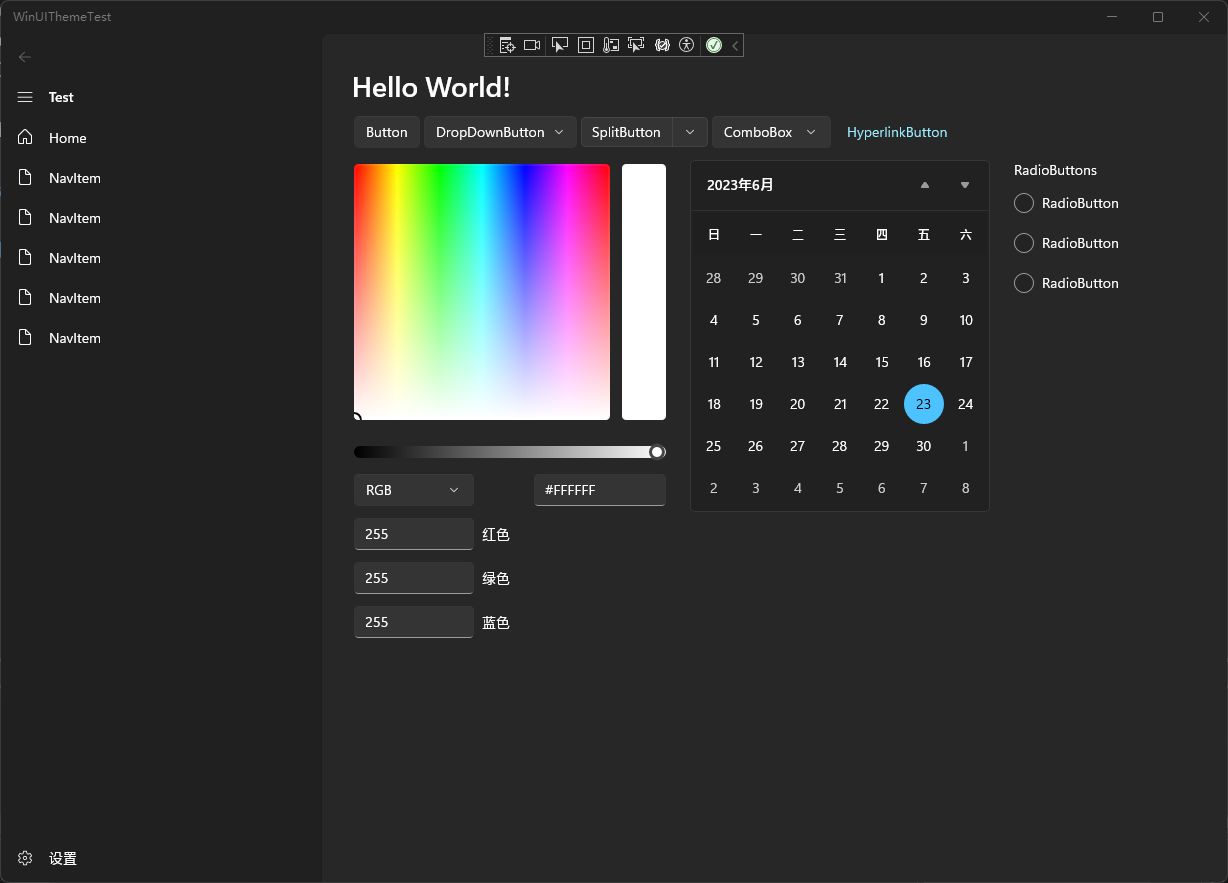
新版样式
源码
https://github.com/zxbmmmmmmmmm/WinUIThemeSample